
Overview
The Day Count Conventions Window lets you see how the different day count conventions calculate time between dates as a year fraction.
To open a new Day Count Conventions window, select Day Count Conventions from the Tools menu. You can open as many windows as you like to compare the day counts side by side.
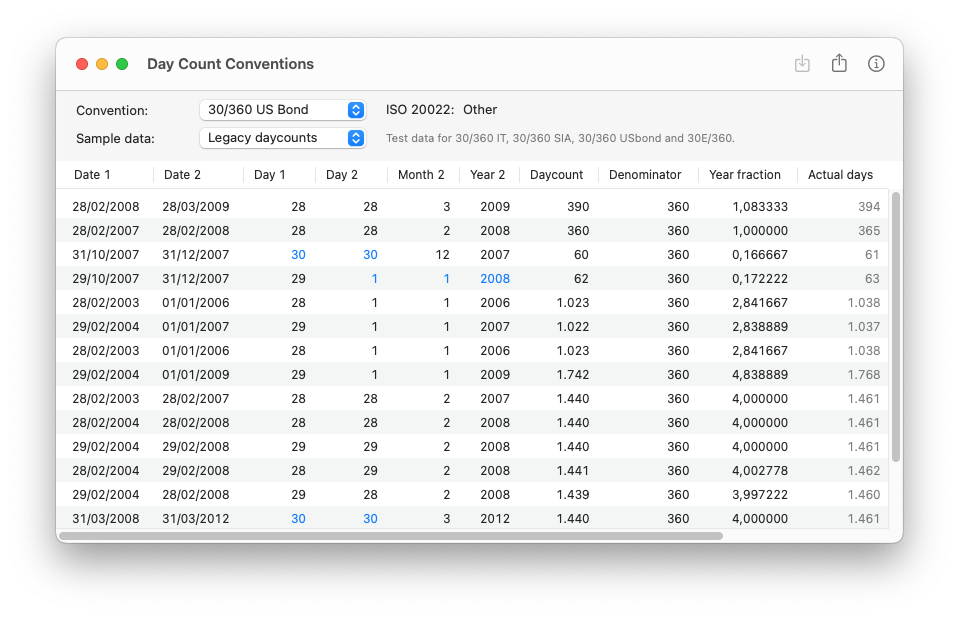
Day count conventions
InterestThing provides 18 different day count conventions: the 14 day count conventions with codes A001 to A014 as described in the ISO 20022 standard documentation for methods of interest calculation (MICO), along with 4 methods from FinFlow that aren't covered in the standard.
 Click the Info button in the toolbar for more info about the selected day count convention.
An overview of the available day count conventions can be found here.
Special day count conventions
While most day count conventions just need a start and end date to calculate, the Actual/Actual ICMA and the 30/Actual day count conventions additionoally require a reference date and a coupon frequency.
They are mainly used to determine accrued interest for bonds at a date that falls inside a coupon period.
While they are not available to calculate year fractions, the Actual/Actual ICMA method can be used to calculate the days fraction when using Periods and Days.
Sample data
Sample data sets are provided, with data taken from examples we found on the web and which were used to test our calculations.
A Special cases set includes data that highlight how the "Other" day count conventions differ from the standard ISO 20022 methods. It also includes data that cover 4-year periods to see how longer periods are calculated.
Depending on the selected day count convention, the table will display the values that are used to calculate the year fraction.
Some day count conventions that are based on 30-day months and 360-day years change values for day, month or even year, if so, the changed value is highlighted in blue.
Importing Custom sample data
If you want to add your own test data, you can set up a tab delimited text file and import it as the Custom data set.
To import a custom data set, select the Custom data set and click the Import button in the toolbar.
Exporting sample data
If you want to edit sample data, you can save the current data to a tab delimited text file, edit it and import it back as the Custom data set.
To export the current data set, click the Export button in the toolbar.