Overview
InterestThing documents are edited in a Cashflow window.
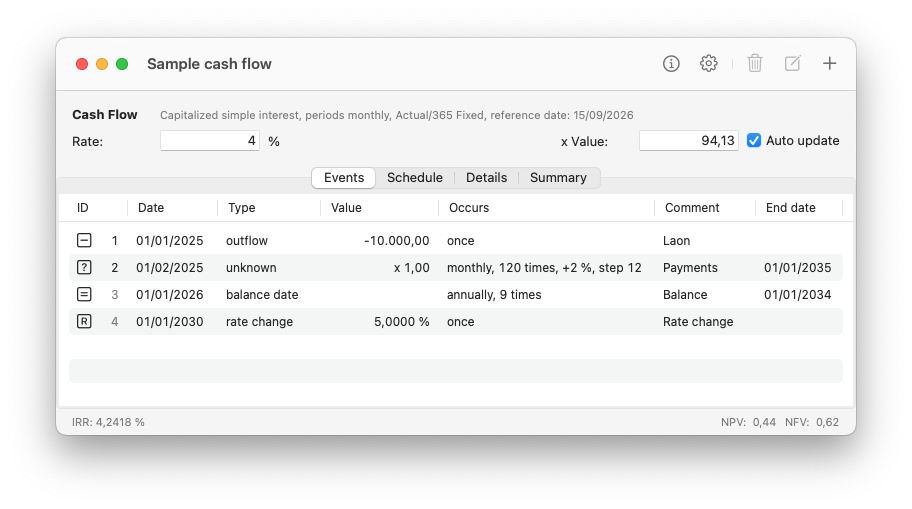
A Cashflow window has a toolbar with the document title and buttons to edit compute options, and to delete, edit and add events.
The window itself has a rate field which is used to enter the default nominal annual rate. Calculations are performed with this rate unless you specify Rate Change events.
When the cashflow includes Unknown events, the x Value field and the Auto update button are displayed.
Cashflows are set up by adding a number of events. Events can occur once or periodically and are displayed under the Events tab.
Based on the events, InterestThing creates data items which are displayed under the Schedule tab.
The Details tab provides details from the time between dates calculations for each data item.
The Summary tab provides an overview of the compute options, results, rates info, event and data counts per event type, duration and dominant interval. For periods and days calculations it also displays statistics for total full periods, number of intervals with stubs, total stubs and days fraction denominators.
At the bottom of the window is the status bar with the following cashflow metrics:
The IRR when the internal rate of return could be calculated, along with info about sign changes.
The NPV or the net present value and the NFV or the net future value of the cashflow.
Toolbar buttons
Toolbar buttons are located at the top right of the window.
 Edit document info
 Edit compute options
 Add a new event
 Edit the selected event
 Delete one or more selected events
Compute options
Compute options determine how InterestThing calculates interest.
To edit compute options, click the Compute Options button in the toolbar, or select Compute Options in the Edit menu.
For an overview of the available compute options, click here.
Adding, editing and deleting events
Every event has a date and event settings vary depending on the event type.
Events can create single data items or a series of data items
occuring at regular intervals.
Depending on the event type, the created items can have values
that change periodically by a fixed value or by a percentage.
To add a new event, click the Add Event button in the toolbar, or select Add Event in the Edit menu.
To edit an event, go to the Events tab and select an event, then click the Edit Event button, or select Edit Event in the Edit menu.
To delete one or more events, go to the Events tab and select one or more events, then click the Delete Event button, or select Delete Event in the Edit menu.
For an overview and a description of the available event types, click here.